Review the Warning Log
Use the warning log to review validation warnings that appear after an Allocator file has finished processing.
A validation warning does not always mean the file failed. It means Allocator found one or more records that may need review. Review the warning log before reviewing reports or approving the job.
When to Review the Warning Log
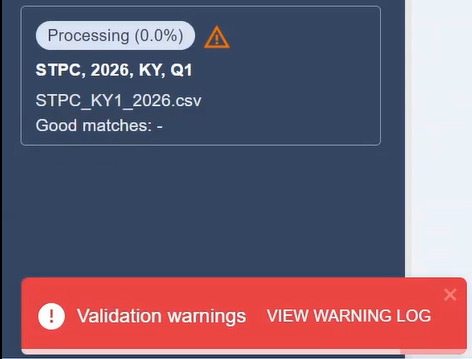
Review the warning log when a validation warning appears on the job tile after processing.
Warnings may appear when Allocator identifies records that need attention, such as addresses with an invalid state or records that could not be fully matched.
Open the Warning Log
To open the warning log, click the warning icon on the job tile.
The warning log opens in a separate window.
Review the Warning Details
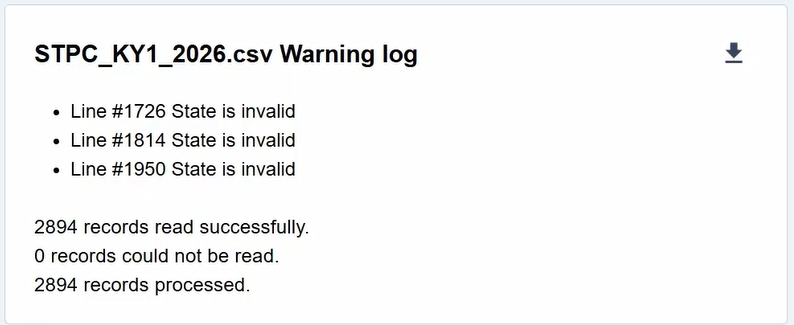
The warning log lists the records or issues identified during processing.
Review the warning details to determine whether any records need to be corrected or researched before the job is approved.
For example, the warning log may show that one or more policies have an invalid state. This means the state abbreviation in the source file does not match the state selected for the allocation job.
Compare the Warning Log to the Reports
After reviewing the warning log, open the processed job and review the reports.
Use the reports to confirm how the affected records were handled during processing.
For example:
- Use the Job Summary to see the overall match results.
- Use the Match Exceptions report to review records with match issues.
- Use the Allocation Detail report to review policy-level allocation results.
- Use the Non-Taxable report to review policies assigned to non-taxable areas.
Correct Records, if Needed
If the warning log identifies records that need correction, review the affected records in the appropriate report.
Some address corrections can be made after changing the job status to Under Review.
Address corrections may be made from reports such as:
- Match Exceptions
- Non-Taxable
- Allocation Detail
After corrections are saved, review the Address Corrections report to confirm the changes.
If the Warning Indicates a File Issue
If the warning appears to be related to the file itself, review the source file before uploading it again.
Check the following:
- File name
- File format
- Required fields
- State abbreviation
- Address information
- Premium type codes
- Allocator Options
If the file format or file name is incorrect, correct the issue and upload the file again.
Next Step
After reviewing the warning log, review the Job Summary and other Allocator reports.
Related Articles